CSV to QIF converter
For software that reads QIF and nothing newer. Set which column is which, download the file.
Free, no accountNothing is uploadedNo file size limit
Drop your CSV here
or click to choose a file · nothing is uploaded
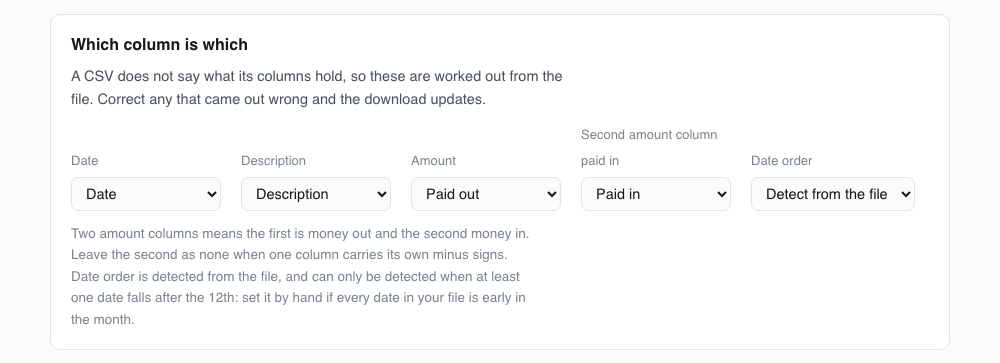
Which column is which
A CSV does not say what its columns hold, so these are worked out from the file. Correct any that came out wrong and the download updates.
Two amount columns means the first is money out and the second money in. Leave the second as none when one column carries its own minus signs. Date order is detected from the file, and can only be detected when at least one date falls after the 12th: set it by hand if every date in your file is early in the month.
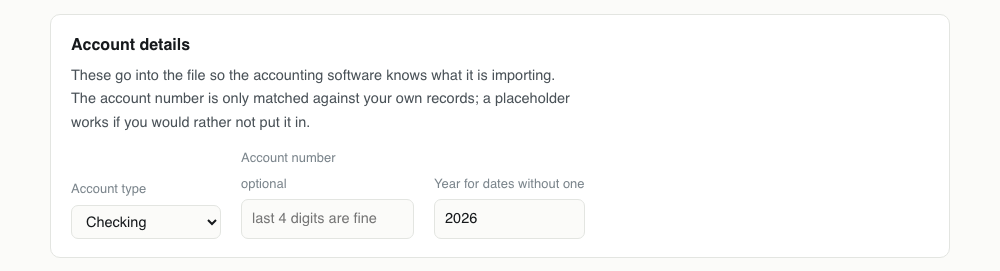
Account details
These go into the file so the accounting software knows what it is importing. The account number is only matched against your own records; a placeholder works if you would rather not put it in.
Converting CSV to QIF, step by step
1Get the CSV out of your bank
Any transaction export will do. Column names do not matter, and neither does their order: what matters is that one column holds dates, one holds the payee text and one or two hold the money.

2Map the columns
Four selects appear, filled in with a first guess. Spend the ten seconds to read them. In particular decide whether your file has one signed amount column or a pair, because that single choice decides whether your money moves the right way.
3Choose bank or credit card
This writes the !Type line at the top of the QIF, which is how the receiving software decides which register the transactions belong in. It is the difference between transactions landing in your current account and landing on a card.
4Download and read the file
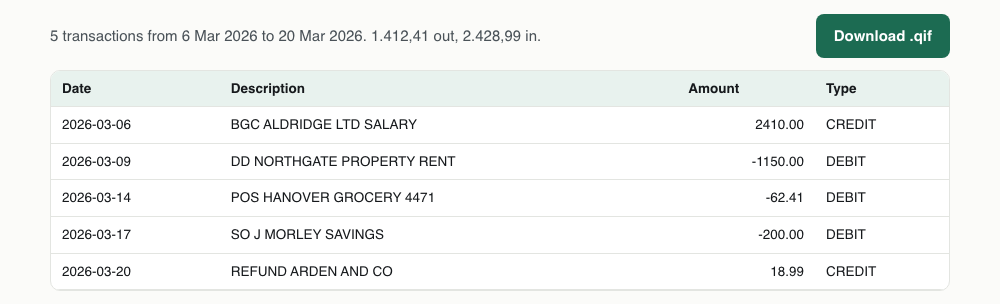
The output is short enough to scan. Five lines per transaction, a caret between them, and the amounts written with explicit signs. If something is wrong you will see it here rather than after it is in your books.
One CSV transaction, and the QIF it becomes
Five lines out for one row in. QIF says a lot less about a transaction than the newer formats, which is exactly why old software still reads it.
Date,Description,Amount
2026-03-06,BGC ALDRIDGE LTD SALARY,2410.00!Type:Bank
D03/06/2026
T2410.00
PBGC ALDRIDGE LTD SALARY
^What survives CSV to QIF
Neither end of this conversion is rich, so almost nothing is lost. What is missing was never in the CSV either.
| Field | What happens to it | |
|---|---|---|
| Date | Kept | Rewritten as MM/DD/YYYY regardless of how the CSV wrote it |
| Description | Kept | Becomes the P line, trimmed at 255 characters |
| Amount | Kept | Two decimals with an explicit sign |
| Account type | Rebuilt | Sets the !Type header from the selector above, not from the file |
| Transaction id | Lost | Neither format has one, so nothing is lost and nothing protects you from a double import |
| Categories | Lost | Not written, even though QIF has a field: a CSV rarely carries categories worth importing |
| Extra columns | Lost | Balance, reference and anything else in the CSV is left behind |
Importing the QIF
MS Money: File, then Import, then Downloaded statement. Money reads QIF without complaint and has no account type restrictions.
GnuCash: File, then Import, then Import QIF. It will ask you to confirm the date format it detected and to match the file's account to one of yours, which catches most mistakes before they land.
Quicken: File, then File Import, then QIF File. Remember that current Quicken accepts QIF only into cash, asset and liability accounts, so for a checking or card account the QFX route is the one that works.
QIF is the lowest common denominator
One field per line, a caret to end each record, and no header beyond a line naming the account type. That simplicity is why software from the 1990s still reads it and why it is the format to reach for when nothing else is accepted.
It is also why it has no transaction ids, no balances and no account details. Everything a QIF knows about a transaction is its date, amount, payee, memo and cheque number.
Getting the sign right
This is where CSV to QIF goes wrong. If your export has one amount column with minus signs, leave the second amount column set to none. If it has separate paid out and paid in columns, set both, and the first is treated as money leaving.
Check a known refund or deposit in the preview before you download. A file with every sign inverted imports without an error and looks correct until the balance is wrong by twice the total.
Bank account or credit card
The account type above decides the first line of the file: !Type:Bank or !Type:CCard. Quicken uses it to decide which register the transactions belong in, so a credit card export sent through as a bank account lands in the wrong place and has to be deleted rather than moved.
There is a second wrinkle on credit cards. Some card exports print spending as positive and payments as negative, which is the opposite of a bank export. If your preview shows purchases as positive figures, flip the amount columns.
Neither end protects you from a double import
A CSV has no transaction ids and neither does a QIF, so nothing along this route can tell the receiving software that a transaction has been seen before.
That makes bookkeeping the safeguard. Convert one period at a time, import it once, and write down what you have done. If you are going to be doing this monthly, the QFX route is worth the extra step precisely because it carries ids.
Editing the QIF afterwards
The output is plain text and each record is five short lines, so fixing a payee or removing a transaction before import is genuinely easy. Open it in any editor, find the record, change the P line.
The only rule is that every record has to end with a caret on its own line. Delete one by mistake and the reader merges two transactions into one without complaining.
QIF problems, and what causes them
| What you see | Why | What to do |
|---|---|---|
| The transactions all went into the wrong register | The account type was left on Checking when the file is a credit card export, or the other way round. | Change the account type and convert again. Delete the first import rather than trying to move the transactions. |
| Purchases are showing as income | Either the amount columns are the wrong way round, or the card export prints spending as positive, which some do. | Look at the preview for a transaction you know was spending. It should be negative. If it is not, swap the two amount columns. |
| The import brought in a row of column headings | The header row was not recognised, which happens when the first data row also fails to parse as a date. | Check the date column select. If the header is still coming through, delete that row from the CSV and convert again. |
| Amounts with thousands separators came in wrong | A file using a comma as the decimal separator rather than for thousands, which is normal outside the US. | Both conventions are handled, but check one large amount in the preview to be sure yours was read the way you expect. |
| I need the categories from my CSV | No category is written, even though QIF has a field for it. | Add the L lines by hand after converting. QIF is plain text and the field is a single letter followed by the category name. |
CSV to QIF questions
- What software still uses QIF?
- Older versions of Quicken, MS Money, GnuCash, and a long tail of accounting packages outside the US. Current Quicken prefers QFX but will still import QIF into some account types.
- How do I know if my amounts have the right sign?
- Look at the preview and find a transaction you know was money coming in. It should show as a positive amount. If it is negative, the amount columns are the wrong way round.
- Can QIF hold categories?
- The format has a category field, but this converter does not write one. A CSV rarely carries categories that map to anything in the receiving software, and inventing them creates accounts you did not ask for.
- Is there a size limit?
- None imposed here. The conversion runs in your browser, so the practical ceiling is your machine's memory, which is thousands of times more than a year of transactions needs.