CSV to QBO converter
Turn a CSV of transactions into a Web Connect file QuickBooks Desktop will import. Runs in your browser: the file is never uploaded.
Free, no accountNothing is uploadedNo file size limit
Drop your CSV here
or click to choose a file · nothing is uploaded
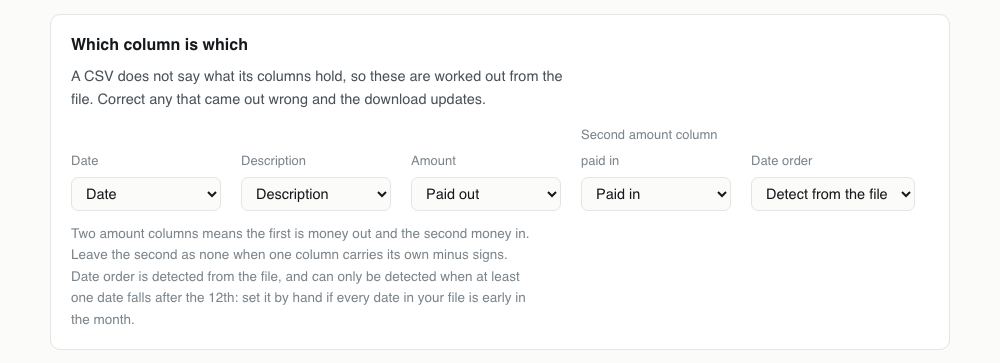
Which column is which
A CSV does not say what its columns hold, so these are worked out from the file. Correct any that came out wrong and the download updates.
Two amount columns means the first is money out and the second money in. Leave the second as none when one column carries its own minus signs. Date order is detected from the file, and can only be detected when at least one date falls after the 12th: set it by hand if every date in your file is early in the month.
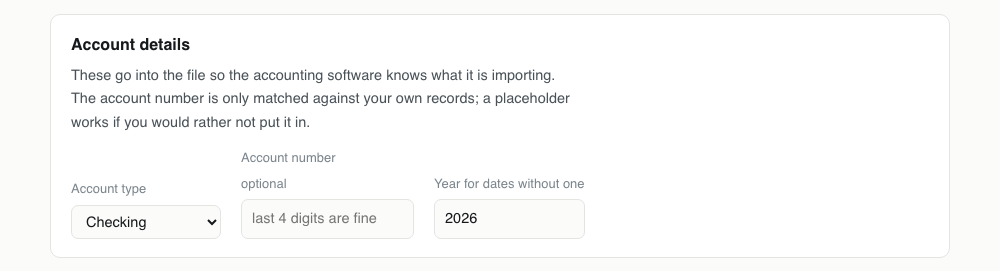
Account details
These go into the file so the accounting software knows what it is importing. The account number is only matched against your own records; a placeholder works if you would rather not put it in.
Converting CSV to QBO, step by step
1Export the CSV from your bank
Almost every bank offers CSV alongside the PDF statement, usually labelled Download, Export or Transactions. Pick the widest date range it will give you in one go: converting one file of twelve months is less work than twelve files, and it removes the chance of a gap between them.

2Drop it in and check the three columns
The date, description and amount columns are detected and shown as selects. Read them once against the preview underneath. The amount is the one that goes wrong: if your bank uses separate paid out and paid in columns, both need setting, and the first is treated as money leaving.
3Set the account type and year
Checking, savings or credit card decides which account block goes into the file, and QuickBooks uses it to decide what kind of register it is filling. The year only matters if your CSV prints dates without one, which plenty do.
4Download and check the preview first
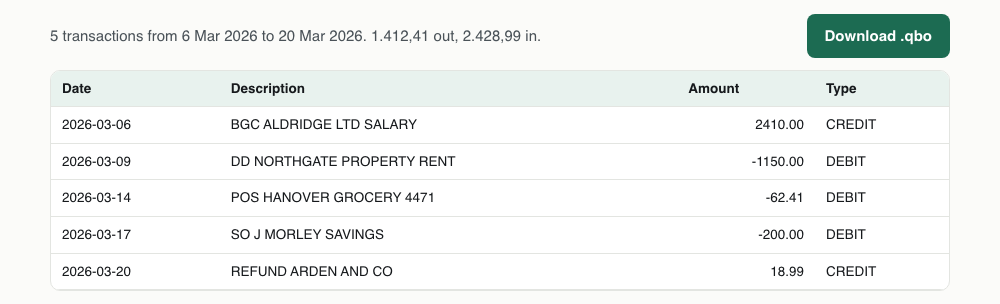
The summary line gives the transaction count and the totals in and out. Compare those against the statement the CSV came from before you import anything: if the count is short, a row failed to parse, and the file will import quietly missing it.
One CSV transaction, and the QBO it becomes
A spreadsheet row has no meaning until something assigns it one. Here is the assignment, for one line of a real export.
Date,Description,Paid out,Paid in
14/03/2026,POS HANOVER GROCERY 4471,62.41,<STMTTRN>
<TRNTYPE>DEBIT
<DTPOSTED>20260314120000
<TRNAMT>-62.41
<FITID>2026031406241HANOVERGROCE
<NAME>POS HANOVER GROCERY 4471
</STMTTRN>What survives CSV to QBO
A CSV holds less than a QBO does, so parts of the output have to be built rather than copied. This is what is built and from what.
| Field | What happens to it | |
|---|---|---|
| Date | Kept | Normalised to YYYYMMDD, with the day-first question settled once for the whole file |
| Description | Kept | Becomes NAME, trimmed to 96 characters, which is the OFX limit |
| Amount | Kept | One signed column, or a paid out and paid in pair collapsed into one signed figure |
| Transaction type | Rebuilt | Derived from the sign, since a CSV rarely states it: negative becomes DEBIT |
| Transaction id | Rebuilt | Generated from date, amount and payee, because a CSV has none to carry |
| Balance | Lost | A running balance column is not imported; QuickBooks computes its own |
| Account details | Rebuilt | Taken from the fields above the download, not from the CSV |
Importing the QBO into QuickBooks
In QuickBooks Desktop: File, then Utilities, then Import, then Web Connect Files. Choose the .qbo, then pick the account it belongs to. QuickBooks reads the file, matches each transaction id against what it already holds, and reports how many it accepted.
The transactions land in the Bank Feeds centre rather than straight in the register. That is normal and it is the point: you review and categorise them there, then add them to the register in a batch.
In QuickBooks Online, the same file goes in under Transactions, then Bank transactions, then Upload from file. Online also takes the CSV directly, which is usually the easier path, so consider whether the conversion is buying you anything before you do it.
Check you actually need a QBO
QuickBooks Online imports CSV directly, with a column mapping step, and a CSV is easier to fix before import: open it, correct a description, delete a duplicate, save. If you are on QuickBooks Online, converting to QBO first usually adds a step and takes options away.
The case for QBO is QuickBooks Desktop, where CSV import is limited or absent depending on the edition, and any situation where you want the transaction type and a per transaction id to survive the trip. Those ids are what stop a re-import from creating duplicates.
The columns are guessed, then shown
A CSV carries no meaning. The date column is found by seeing which one parses as dates, the description by which holds the most letters, and the amount by which looks like money. That works on most bank exports and it is still a guess, so the mapping is shown for correction rather than applied quietly.
The one to check is the amount. Some banks export a single signed column, others a paid out and a paid in pair. If your file has the pair, set both: the first is treated as money leaving even though it is printed without a minus sign. Get this backwards and every refund becomes spending.
Where the transaction id comes from
QuickBooks recognises a transaction it has already imported by its FITID. A CSV has no such field, so one has to be made, and how it is made decides whether a second import is safe.
It is built from the posting date, the amount and the first characters of the payee, which means the same CSV always produces the same ids. Import the file twice and QuickBooks skips everything the second time. Two genuinely identical transactions on one day, the same coffee bought twice, get a counter appended so they stay distinct.
What this cannot do is match ids with a file from your bank. If you later download an official QBO covering the same period, its ids come from the bank and QuickBooks will treat those transactions as new. Pick one source per period and stay with it.
The financial institution error
QuickBooks checks the ids in a Web Connect file against the account you are importing into, and refuses the file when they disagree. The message is about being unable to verify the financial institution.
The reliable fix is to create the account fresh in QuickBooks and import into it: it binds the ids on the first import and accepts whatever arrives. Importing into an account already bound to a different bank will fail no matter what the file says.
Dates without a year
Plenty of exports print 03/14 with no year. There is nothing in the file to recover it from, so the year field above is used, and it defaults to this one. Set it before downloading if you are converting an older statement, because a January file imported with the wrong year lands months away and looks entirely plausible once it is in the books.
The day first question is separate and worse, because it can go wrong halfway through a file. It is decided once across every date in the column rather than row by row, and you can override it if every date in your statement happens to fall on or before the 12th.
Why this one is free when the desktop tools are not
The conversion is a few hundred lines of JavaScript and it runs on your computer, in the tab. There is no server doing the work, so there is no per file cost to recover and no reason to meter it.
The paid alternatives are desktop programs that charge monthly for the same arithmetic. What they are really selling is that the file stays on your machine, which is a reasonable thing to want and not something that needs to be bought.
QBO problems, and what causes them
| What you see | Why | What to do |
|---|---|---|
| QuickBooks is unable to verify the Financial Institution information | The bank and account ids in the file do not match the ones QuickBooks bound to the account you are importing into. | Create a new account in QuickBooks and import into that. It binds the ids on the first Web Connect import and accepts what arrives. |
| Every refund shows as spending | The two amount columns are the wrong way round, so the paid in column is being read as money leaving. | Swap the amount and second amount selects, and confirm with a transaction you know was a deposit before downloading again. |
| The transaction count is lower than the statement | Rows whose date or amount could not be read are skipped, and the skipped count says how many. Subtotal lines and repeated headers are the usual culprits and are meant to be skipped. | If the number is larger than the junk rows in the file, check the date column select: a wrong column skips everything. |
| All the dates are in the wrong month | The file is day first and every date in it falls on or before the 12th, so nothing in the file settles the order. | Set the date order select to Day first. The preview updates immediately. |
| QuickBooks says the file is already imported | The ids are derived from the transactions, so re-converting an unchanged CSV produces the same file. QuickBooks is telling you it has these already, which is the protection working. | Nothing to fix. If you genuinely need them again, delete the earlier batch in QuickBooks first. |
| Nothing happens when the file is dropped | The file is not really a CSV. Exports named .csv that are actually XLS or HTML tables are common from older banking portals. | Open it in a spreadsheet and save it again as CSV, then convert that. |
CSV to QBO questions
- Is this CSV to QBO converter free?
- Yes, with no account, no file limit and no watermark. It runs in your browser, so it costs nothing to run and there is nothing to charge for.
- Will QuickBooks Online accept the file?
- It will, but you probably do not need it. QuickBooks Online imports CSV directly and lets you map columns during the import, which is easier to correct than a converted file.
- Why does QuickBooks say it cannot verify the financial institution?
- The ids in the file do not match the account you are importing into. Set up a new account in QuickBooks and import into that: it binds the ids on the first Web Connect import.
- Can I convert Excel to QBO?
- Save the sheet as CSV first, then convert it here. An .xlsx is a zip archive of XML rather than a text file, and every spreadsheet program will export CSV in two clicks.
- Does the converted file work with QuickBooks for Mac?
- QuickBooks for Mac reads Web Connect files the same way the Windows desktop editions do, so yes. The account binding behaves identically, including the financial institution check.