CSV to QFX converter
Quicken wants a QFX and your bank wants money for one. The CSV they give away has the same transactions in it.
Free, no accountNothing is uploadedNo file size limit
Drop your CSV here
or click to choose a file · nothing is uploaded
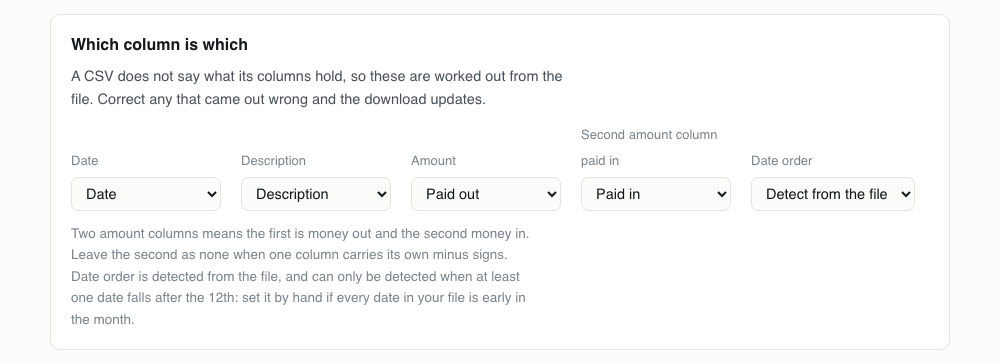
Which column is which
A CSV does not say what its columns hold, so these are worked out from the file. Correct any that came out wrong and the download updates.
Two amount columns means the first is money out and the second money in. Leave the second as none when one column carries its own minus signs. Date order is detected from the file, and can only be detected when at least one date falls after the 12th: set it by hand if every date in your file is early in the month.
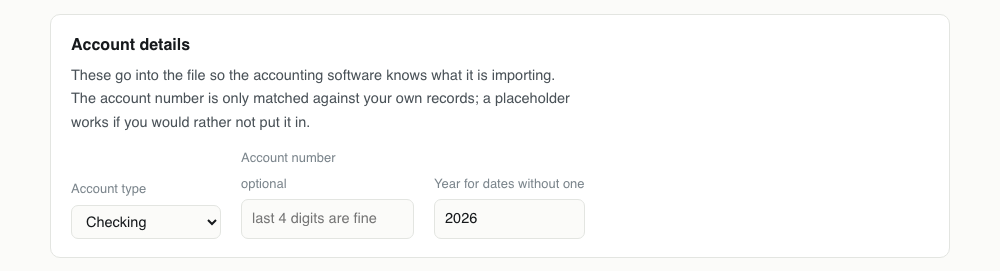
Account details
These go into the file so the accounting software knows what it is importing. The account number is only matched against your own records; a placeholder works if you would rather not put it in.
Converting CSV to QFX, step by step
1Download the free CSV rather than paying for Web Connect
This is the whole point of the page. The CSV export sits next to the Quicken download on nearly every online banking site and carries the same transactions, without the monthly fee some banks attach to the branded format.

2Drop it in and check the columns
Date, description and amount are guessed from the file and shown as selects. Read the amount mapping against the preview: a paid out and paid in pair needs both set, and the first is the one treated as money leaving.
3Match the account type to the Quicken account
Checking, savings or credit card. Quicken uses the account block in the file to decide what it is looking at, and a card imported as checking makes every payment look like a deposit.
4Download the .qfx
Each transaction leaves with an id derived from its own date, amount and payee, so Quicken can tell later whether it has seen it. Converting the same export twice produces the same file, which is what makes that work.

One CSV transaction, and the QFX it becomes
A column labelled paid out becomes a negative amount. That single step is where most conversions of this kind go wrong.
Date,Description,Paid out,Paid in
17/03/2026,SO J MORLEY SAVINGS,200.00,<STMTTRN>
<TRNTYPE>DEBIT
<DTPOSTED>20260317120000
<TRNAMT>-200.00
<FITID>2026031720000SOJMORLEYSA
<NAME>SO J MORLEY SAVINGS
</STMTTRN>What survives CSV to QFX
Quicken needs more structure than a spreadsheet carries, so several fields are derived. None of them are guessed from nothing.
| Field | What happens to it | |
|---|---|---|
| Date | Kept | Day first and month first files are both handled, decided once per file |
| Description | Kept | Becomes NAME, which is the field Quicken shows in its payee column |
| Amount | Kept | A paid out column is negated; a single signed column is taken as written |
| Transaction type | Rebuilt | DEBIT or CREDIT from the sign. Quicken does not use it for much |
| Transaction id | Rebuilt | Generated and deterministic, which is what lets Quicken skip a repeat import |
| Account type | Rebuilt | From the selector above. Getting it wrong puts the transactions in the wrong register |
| Categories | Lost | Quicken assigns its own on import, using its renaming and category rules |
Importing the QFX into Quicken
File, then Import, then Bank or Brokerage File, and choose the account. Quicken reads the ids, tells you how many transactions it accepted and how many it already had, and puts the new ones in the account for review.
Quicken will apply its payee renaming rules as it imports, so the names in your register will not match the raw strings in the CSV. That is normal and it happens with files from banks too. Turn it off in preferences if you want the descriptions kept verbatim.
If Quicken offers to link the account to an online service during the import, decline it. The link is for live downloads from the bank and has nothing to do with reading a file.
Why banks charge for QFX and not for CSV
The QFX branding is licensed. Banks pay Intuit to issue files that Quicken will accept, and some of them pass that on as a monthly fee or restrict it to business accounts, while the CSV export stays free for everyone.
The transactions are identical in both files. Converting the free export is not a workaround for a technical limitation, it is a way around a licensing fee that exists between your bank and a software company.
Importing into Quicken
File, then Import, then Bank or Brokerage File, and pick the account. Quicken matches transactions on their ids and will tell you how many it accepted and how many it skipped as already present.
If Quicken says the financial institution is not supported, the account you are importing into is already bound to a different bank. Set up a new account and let Quicken bind it on the first import.
Credit cards need the account type set
A credit card produces a different account block in the file from a checking account. Import a card statement as checking and Quicken will take it, put it in the wrong register and treat every payment as a deposit.
Set the account type above before downloading. It is a two second check that saves unpicking a register afterwards.
Quicken will rename your payees
Do not be alarmed when the payee in Quicken does not match the payee in your CSV. Quicken applies its renaming rules on import, turning a raw string like POS HANOVER GROCERY 4471 into whatever you or it decided that merchant is called.
This happens with files straight from a bank too. If you want the raw description kept, turn off automatic payee renaming in Quicken's preferences before importing rather than changing anything in the file.
One period at a time
The ids generated here are derived from the transactions themselves, so overlapping exports behave sensibly: if February appears in two CSVs, the shared transactions produce the same ids and Quicken imports them once.
What breaks that is editing the CSV between conversions. Change an amount or a payee and that row becomes a different transaction as far as the id is concerned, and Quicken will add it alongside the original.
QFX problems, and what causes them
| What you see | Why | What to do |
|---|---|---|
| Quicken says the financial institution is not supported | The account you are importing into is already bound to a different institution's ids. | Create a new account in Quicken and import into that, letting Quicken bind it on the first import. |
| The payees in Quicken do not match the file | Quicken's automatic payee renaming rewrote them on import. | Preferences, then Downloaded transactions, and turn off automatic payee renaming. Then re-import. |
| Card payments appear as deposits | The account type was left as Checking for a credit card export. | Set the account type to Credit card and convert again. The account block in the file changes and the signs read correctly. |
| The same transactions imported twice | The CSV was edited between the two conversions, so the ids changed and Quicken saw new transactions. | Always convert from the bank's original export. If you need to edit, edit after import inside Quicken. |
| Quicken imported nothing at all | Every transaction in the file is already in the register, matched by id. | Check the register for those dates. If they really are absent, compare the transaction count in the summary line against your statement. |
CSV to QFX questions
- Can Quicken import a CSV directly?
- Not into most account types. Quicken's supported import formats are QFX, QIF and, for some editions, OFX. CSV import is not a general feature.
- Is converting a CSV to QFX against my bank's terms?
- It is your own transaction data in a file your bank gave you. The fee some banks charge is for the licensed format, not for the data.
- Will the transactions duplicate if I import twice?
- No. Each transaction gets an id derived from its date, amount and payee, and the same file always produces the same ids, so Quicken recognises what it has already taken in.
- Why did Quicken change my payee names?
- Quicken renames payees on import using its own rules. Turn off automatic payee renaming in preferences if you want the raw description from the file.